
Are you struggling to duplicate your website on a second domain without losing your mind? I totally get it, but it’s actually easier than you think if you follow the right steps.
A few months ago, I was in your position. I wanted to copy my website to another domain but could not find a tutorial that worked.
If you have tried this before, you already know most of the problems. Whether you are launching a new brand or just want to test a fresh idea, copying your website can be a disaster.
But it doesn’t have to be that way. I’ve turned the process into four simple steps that anyone can follow. This method has saved me countless hours of error codes and endless tutorials. In this post, I’ll show you exactly what I do and get that second website cloned in no time. Let’s get started!
Step 1: Backup your existing website:
In case something goes wrong along the way, you want to backup your current site so you can always go back if you need to.
How to create a backup with your hosting control panel.
1. Access your hosting panel:
First, you want to log in to your web hosting control panel.
2. Export database:
Next, you want to find your database management tool. The most popular option is phpMyAdmin. You will then select your WordPress database and click the “Export” button to download the SQL file.
3. Download website files:
You will now need to download an FTP client if you don’t already have one. The most popular and our recommended choice is FileZilla.
You can connect the FTP client to your website directory by adding the hostname, username, and password.
You should be able to download all the files onto your computer from here. You have now successfully created a backup of your website.
How to create a backup using WordPress plugins
Choose a backup plugin:
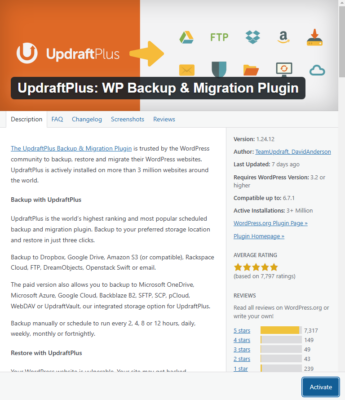
Updraftplus is our favorite backup plugin, but BackupBuddy and BackWPup are also great choices.
Install and activate the plugin:
You can access your WordPress dashboard, navigate to “Plugins > Add New,” search for your chosen plugin, and install it. Once the plugin is installed, you can activate it by clicking the “Activate” button in the bottom right.
Configure settings:
You can access the plugin settings within your WordPress dashboard, select what you want to back up (files or databases) and choose a storage location for your backups.
Step 2: Set up hosting for the new domain:
Now that you have successfully created a backup, you will need to set up hosting for the new domain. The best way to do this is to use the same hosting platform you used for the previous domain. This way, the entire setup process will be familiar to what you’ve seen before.
If you want hosting recommendations, the top options are Hostinger, Nexcess, and WordPress.
Step 3: Upload website files to the website:
You will now need to upload all the previously downloaded files to your new website. Whether you have your backup with a plugin or downloaded with the FTP client, we have step-by-step instructions for both.
How to upload your backup with the hosting control panel
Create a new database on new hosting:
Log into your new hosting’s cPanel.
Go to the MySQL Databases section and create a new database with a username and password.
Upload WordPress files:
Access the File Manager in your new hosting cPanel.
Navigate to the root directory of your domain and upload your downloaded WordPress files.
Import database:
Use phpMyAdmin on your new hosting to import the exported database file.
Update database details in wp-config.php:
Access the wp-config.php file in your uploaded WordPress directory.
Update the database name, username, and password to match the new database you created.
How to upload your backup using plugins
First, you want to install the same plugin you used on your original site to create the backup. If you used our recommendation, UpdraftPlus, then you can follow the steps below to get your upload your backup.
- Open the destination site and install and activate UpdraftPlus
- Select the same remote storage location where you uploaded the backup.
- Scroll to the bottom of the Backup / Restore tab and select the backup you made of the source site
- Launch the wizard to guide you through the rest of the migration process
Step 4: Configure DNS settings:
Now that you have uploaded your backup, you must set up the DNS settings properly.
- The first step is to modify your master domain in your hosting control panel.
- Next, you will log into your domain registrar. This might be GoDaddy, Squarespace, Namecheap, or a similar option.
- Go to your purchased domain and access the DNS settings.
Now, you will have the option to either manage the nameservers or manage the DNS records. Both of these options work, but pointing to the name servers is the most straightforward. I will walk you through how to do both.
How to point the nameservers to your web host
Get web host nameservers:
Obtain the exact nameserver addresses from your web hosting provider. You can almost always find this by just searching “{your web host} nameservers.”
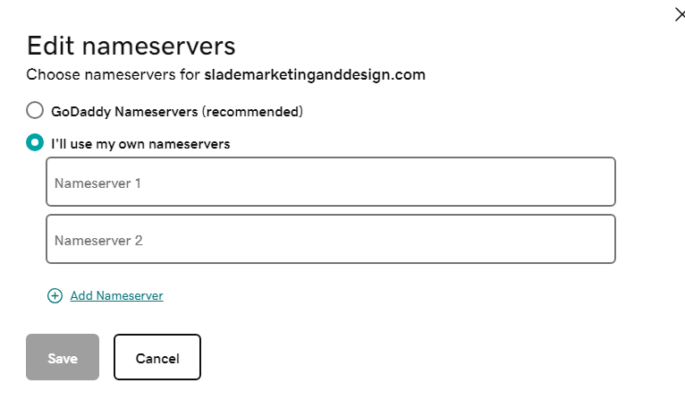
Update nameservers:
Enter the provided nameservers into the designated fields on your domain registrar’s page.
Save changes:
Click “Save” or “Submit” to apply the changes.
How to point an A record to your site:
Create a new A record:
In your domain registrar’s DNS settings, you will want to add a new record. Select “A” as the record type. In the hostname field, you can either set it as “@” or your own domain name. Both options are the same. Now, you can add the IP address. You can find this on your website in the hosting control panel.

DNS changes usually take place within minutes but can take up to 72 hours to fully propagate.
Conclusion
Congratulations—you’ve successfully copied your website to a second domain! By following the four steps mentioned here, you avoided common problems.
If you are still having issues, feel free to contact me so my team and I can personally help!
