
Google Maps is one of the most popular navigation tools for commuters worldwide. From daily commutes and family trips to visiting unfamiliar businesses and other locations, Google Maps is among the most trusted.
Google Maps allows users to save their “Home” and “Work” locations. This allows for easy access to the most usual destinations for most consumers.
But what happens when you change jobs?
This definitive guide ensures that you can easily and accurately change your Work location in Google Maps, ensuring there are no issues with your navigation needs for both desktop and mobile devices.
- Why Update Your Work Address in Google Maps?
- How to Change Your Work Location on Mobile (Android & iOS)
- How to Change Your Work Location on Desktop
- Troubleshooting: What to Do If You Can’t Change Your Work Location
- Tips for Using Labeled Places More Effectively
- Privacy Considerations
1. Why Update Your Work Address in Google Maps?
Updating your Work location on Google Maps when you change jobs is not required, although it is a very convenient practice, especially if you use the app on a day-to-day basis.
This is especially important for users who constantly travel and use their Work location as a “home base.” In addition to routes, Google Maps provides valuable information, such as commute estimates and traffic updates.
It can also be used as a tool to estimate when to leave for meetings or appointments.
Setting your Work address can also help with search relevance, as it can prioritize display for usually visited locations such as gas stations, restaurants, parking areas, and more.
In addition, setting your Work location can also be synced across other Google services such as Google Assistant and Google Calendar.
This allows for better organization and accuracy across the entire ecosystem, giving you more precise information for any purpose it may serve.
2. How to Change Your Work Location on Mobile (Android & iOS)
Changing your Work location using your iOS or Android device in Google Maps is straightforward.
First, ensure you are signed in to your Google Maps app on your device. Next, tap on your profile and select “Your Data on Maps” from the menu that will pop up.
Under “Home & Work Addresses,” select the “Work” option. This will allow you to edit your Work location. You can type your new work address or choose it manually from the map.
Once you are satisfied with the changes, click on “Done”. Once successful, your new Work location will appear once you select or type “Work” in the search bar.
3. How to Change Your Work Location on Desktop
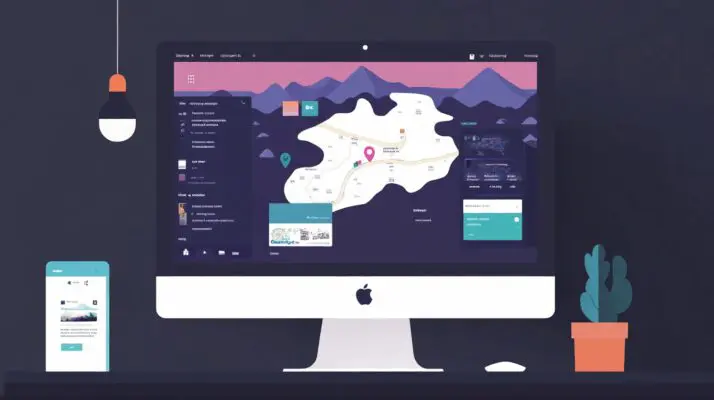
Those who wish to change their Work location in Google Maps using their computers may log in to their Google account and go to Google Maps.
Once logged in, click on the item on the left bar labelled “Saved”. You can tap the “Edit” section of the location marked “Work” here. Once you are satisfied with the information, click on “Save”.
If successful, you can now see your Work location as the new address across all your devices using the Google Maps app for as long as you are signed in using the same account.

4. Troubleshooting: What to Do If You Can’t Change Your Work Location
You can check and correct these issues if you don’t see your Work location being updated.
- You may be logged into the wrong Google account. Make sure that you are using the correct account.
- Your mobile device has not yet synced and updated. Try to clear the cache to see if your Work Location will change.
- If you use a mobile device and have already cleared the cache, try updating or reinstalling Google Maps.
- For those using a desktop, updating the browser may also work if your Work Location has not yet been updated across your devices. Alternatively, you may use your mobile device to make the change instead.

5. Tips for Using Labeled Places More Effectively
Once you have updated your Work location in Google Maps, you can check out the labelled places to make your experience even more convenient.
Users can create customized labelled places aside from Home and Work. This can also be integrated with Google Assistant so you can navigate easily to your local gym or kids’ school with voice commands.
In addition, Google Maps provides up-to-date traffic updates, delays, and other relevant information during your commute.
You can also link Google Maps with Calendar so that the app can provide you with the best departure times, considering data such as traffic.
This information will work best once you successfully and accurately set your Work Location and other vital places in your Google Maps app.

6. Privacy Considerations
While labelling places such as work locations is considered private and not shared publicly, it does affect your personalized experiences when used with Google’s ecosystem. Thus, there is some risk of exposure, especially for those who are determined enough to get this information.
To protect yourself, you can periodically review your Location History settings to ensure your data is not unintentionally shared.
Likewise, you can also opt to use Incognito Mode, which will allow you to search for locations and travel without the information getting shared.
These settings can be accessed by clicking the user icon and checking settings under this section.
Conclusion
Changing your Work location in Google Maps is simple, but it has several benefits, especially if you travel to and from work daily.
It will provide you with an accurate and convenient way to navigate and will also fit seamlessly into your daily routines.
In addition, you can take advantage of Google’s other features, which rely on your current Work location to give you more relevant and up-to-date information.
Following the steps mentioned above, you can successfully change your Work location in Google Maps without any hassle or fuss, regardless of your device.
This very helpful app can provide a smoother long-term experience for a task that you can complete in minutes.
